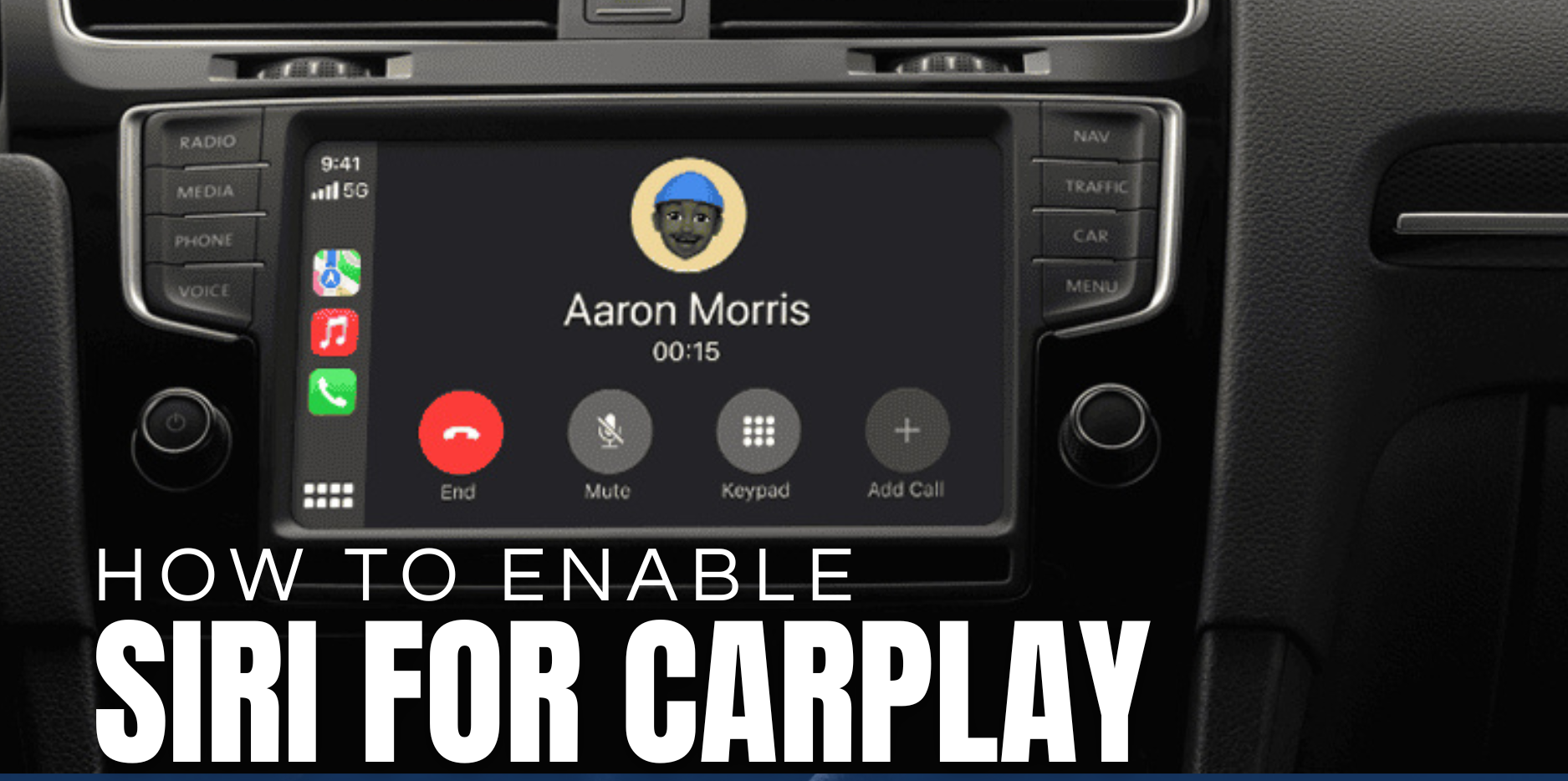
Do you want Siri with Apple Carplay in your car? It’s a great approach to multitask and maintain hands on the driving wheel and eyes on the road. This guide will help you through the process how to enable Siri for Carplay. Let us proceed in a step-by-step manner.
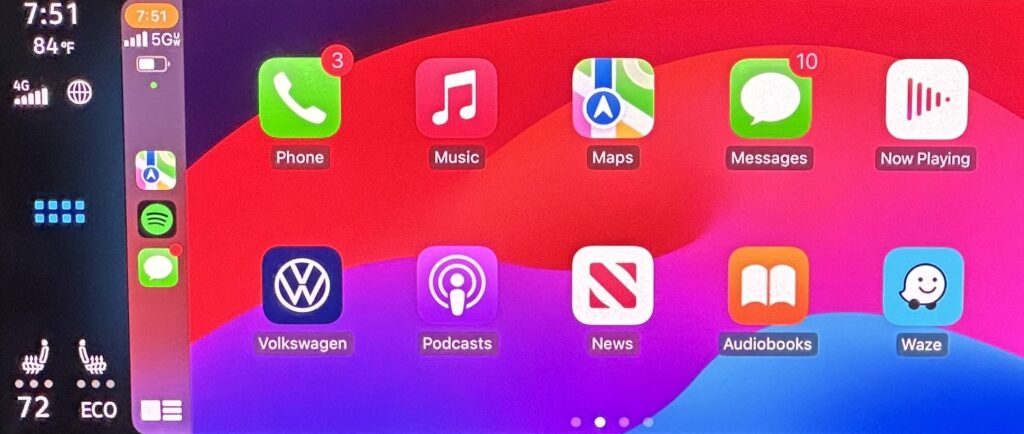
What is CarPlay?
CarPlay is a system that allows you to use your iPhone while driving. It displays a simplified version of your iPhone on the dashboard of your car. You are now able to utilize Maps, Music, Messages, and many more applications. Siri is an integral part of CarPlay since the user is able to control the system by their voice. With Siri, you can now make calls, send messages, play music, and even get directions without touching your phone. Siri and Carplay make multitasking easier, saves time, and most importantly, helps you focus on driving. Many of you must be searching for how to enable siri for carplay, so here’s how to do it.
Step 1: Check Compatability
First things first, before you begin how to enable siri for carplay, check out your car owner’s manual to find out if it has Carplay support. Hey, you might want to take a look at the manufacturer’s website too! Hey, make sure you take a moment to see if your iPhone is running the latest version of the Operating System. It’s always good to stay updated!
Step 2: Get Siri Ready On Your iPhone
If you have never used Siri before, you will be required to enable it in your iPhone settings. Here’s what you need to do:
- Open Settings on your iPhone.
- Scroll down & tap Siri & Search.
- Turn on Listen for “Hey Siri”. This allows you to activate Siri by saying “Hey Siri”.
- Turn on Press Side Button for Siri (or Press Home for Siri, based on your iPhone model). Turn on Allow Siri When Locked.

Step 3: Connecting your iPhone to CarPlay
Now, it’s time to connect your iPhone to your car. That can be done either wirelessly or using a USB cable. This is the third step towards ‘how to enable siri for carplay’ task.
Wired Connection
- Grab an Apple-certified Lightning Cable or USB Cable and plug your iPhone into the car’s USB port.
- CarPlay should launch automatically. If not, tap the CarPlay icon on your car’s display .
Wireless Connection
- Enable Bluetooth and Wi-Fi on your iPhone.
- On your car’s infotainment system, select Wireless CarPlay and follow pairing prompts.
- Note: Some cars require you to enable CarPlay in the vehicle’s settings menu first .
Step 4: Activate Siri in Your Car
Once connected, use these methods to trigger Siri:
- Steering Wheel Button: Press and hold the voice command button (common in newer cars).
- CarPlay Screen: Tap and hold the Siri icon (a white circle) on the dashboard.
- Voice: Say “Hey Siri” if enabled. A chime confirms Siri is listening.
Step 5: Test Siri Commands
Start with basic tasks to ensure everything works:
- Navigation: “Take me to the nearest coffee shop.”
- Communication: “Text Sarah: Running 10 minutes late.”
- Media: “Play my ‘Road Trip’ playlist on Spotify.”
- Siri responds through your car’s speakers, with results displayed on the screen
Troubleshooting Common Issues
Problem 1: Siri Doesn’t Respond
- Check Siri settings: Ensure Listen for “Hey Siri” and Allow Siri When Locked are on.
- Restart your iPhone and car’s infotainment system.
- Verify microphone access: Clean your car’s microphone or check for obstructions.
Problem 2: CarPlay Won’t Connect
- Update iOS and your car’s firmware.
- Try a different USB cable for wired connections.
- CarPlay: Go to Settings > General > CarPlay, tap your car, and select Forget This Car.
Problem 3: Poor Voice Recognition
- Retrain Siri in a quiet environment via Settings > Siri & Search > Improve Siri & Dictation.
- Reduce background noise by closing windows or lowering music volume.
Pro Tips for Better Siri Performance
- Customize Shortcuts: Use the Shortcuts app to create voice commands like “Start my commute” (opens Maps and plays music).
- Enable Driving Focus: Silence non-urgent notifications by setting up Driving Focus in Settings > Focus.
- Third-Party Apps: Use Waze, Google Maps, or Spotify for expanded Siri control.
- Aftermarket Solutions: Install Carpuride screens for wireless CarPlay in older cars.
- You can use AI Tools to see more tips as per your interest.
FAQs
Q: Can I use Siri without saying “Hey Siri”?
- Yes! Press the steering wheel voice button or the Siri icon on the CarPlay screen.
Q: Why doesn’t Siri read my messages aloud?
- Enable Announce Notifications in Settings > Siri & Search.
Q: Does Siri work offline?
- No. Siri requires cellular data or Wi-Fi for most tasks.
Enabling Siri for CarPlay takes minutes but transforms how you interact with your phone on the road. Follow these steps to enjoy safer, smarter driving with voice-controlled navigation, communication, and entertainment.



Leave a Reply